
Appearance
Network Setup
The backbone of your scoring system is the network which connects all parts of the system. A good network setup is half of the effort for a good result. Before diving into the technical details of the network, we want give you some general lines of advice.
TIP
Separate the scoring network from other network traffic
There are several good reasons to keep your scoring network separate from all other network usage in the venue:
- Security: not giving other uses access to the scoring network is a first step into keeping the network safe.
- Avoid overload: If the network is only used for the scoring system, you have a clear picture of the load you might expect. If you allow other users to freely access the network, you might end up with some users who will consume more network capacity than expected and slowing down the scoring system.
TIP
Don't rely on the venue's network
Mostly for the same reasons as mentioned in the previous paragraph, it is a risk to rely on the network facilities already present in the competition venue. Unless you have the opportunity to work together closely with the technical staff of the venue, to make sure all requirements regarding separation of the scoring network from other network usage and guaranties regarding reserved capacity, you want to deploy your own network backbone.
TIP
Using your own network setup makes life easier
If you are having a one-off event, setting up the network might be complicated anyway. If you are, however, organizing competitions on a regular basis, using a fixed set off devices to set up your network will make your life much easier, because you don't need to configure your network from scratch for every event. You deploy your set of devices in the same way for each event. The only thing which will vary from venue to venue is the way you connect your network to the internet.
So what do you need then?
A complete network set-up consists of following items:
- A router, completed with switches where necessary.
- Network cables to connect your key devices to the router.
- One or more access points to add WiFi to your network.
In the next pages, we discuss each of these items in detail.
Note that we try to give some general guidance for acquiring network equipment for your scoring system setup. In this respect, we try to keep it as simple as possible without making compromises regarding capacity and stability. If you have needs that exceed the basic setup described here or feel uncertain about anything, we strongly recommend to seek for expert advice.
Router
The router is the traffic controller of your network, providing a couple off services needed to keep your network sane:
- Providing a network/internet gateway: the router is the border control between the scoring network and any other network it is connected to, including internet connection.
- Firewall: to keep your network safe, most routers offer a firewall service which will prevent unauthorized access to your network from outside.
- DHCP server: this is the server which distributes IP-addresses to the devices connected to the network.
Both firewall and DHCP server are services which can also be provided by separate devices, but in order not to make things more complicated than needed, it seems better to use the services that are already provided by most routers on the market by default.
Router requirements
- Consumer grade routers often have Wi-Fi on board, for reasons that we will explain in detail in the page about the Wi-Fi setup, we prefer not to combine the router and Wi-Fi function.
- Maximal throughput of the router might be important (and scales with the number of users on the network). Consumer market routers can have high throughput numbers, but tend to focus on providing fast connections to a small number of users. Professional devices will be more focused on providing stable connections to a larger number of users.
- By default, most routers on the market offer external network/internet connection by means of a cable. If you are sure that this is possible in the venue(s) you will be using, or don't need internet access during your competition, this might be sufficient. Otherwise, you might want to shop for a router which has other means of connecting to the internet, such as WAN over Wi-Fi or a 5G/4G (mobile network) fallback.
- Routers tend to have a rather small number of network connections (2 to 10). If you need more connections, it might be easier and certainly cheaper to add one or more switches to the setup (see next page) than buying a router with more connections.
Configuration aspects
When configuring your router, you might take following thing into consideration:
IP range
Most routers come with a default setting for the IP-range that is used to assign IP-addresses to the connected devices. For example: 192.168.0.*, which means that in most cases the router itself will be using the address 192.168.0.1 and assign addresses 192.168.0.2 to 192.168.0.254 to the devices.
It is a good idea to change this range. First of all, if you want to integrate with the network in the venue, chances are high that this network will be using the same range, which might cause conflicts. Switching to a less obvious range will avoid this problem.
Another limitation of the default range, is the maximal number of addresses which can be used (about 250). Even if this might seem more than enough, you need to take into account that the number of occupied addresses can be higher than the actual number of active devices. For many competitions there might never be a problem, but if you are changing to a different range, you can as well chose one that has more addresses available.
Fixed IP addresses
In the router (actually the DHCP server), you can assign a fixed IP address to devices. This is linked with the so called mac-address of the network connection: each network device has a unique id.
Some devices can only work with a fixed IP-address (e.g. network connected printers). For other devices such as the computer(s) that you will use as a server for the scoring system, it is optional but strongly advised to use a fixed IP-address.
Examples of routers
Peplink SOHO (B One) routers
As an example of a general purpose router that will serve well in most circumstances, we would advise to look into the Peplink SOHO range.
There are several models in this range, priced between €300 - €700. All models offer the basic configuration options you will need to create your setup.
They also offer multiple ways to establish your internet connection:
- By cable: all models have to WAN connections
- Over Wi-Fi: using the Wi-Fi connection of the router to connect your whole network to the internet
- Over a Mobile connection: depending on the model, you can insert a SIM-card in the router and provide internet access through LTE or 5G depending on the model.
Ubiquiti Routers
Ubiquiti offers range of routers with good value for money, including a wide range of setup possibilities for network configuration, security and monitoring network activity. This is a good option if you don't need
The current selection of routers is called Cloud Gateway. This range of product offers many configuration options and works especially well if you standardise on Ubiquiti equipment for the other devices as well, since they can all be managed from same management interface.
Unfortunately this interface does not integrate devices of other brands. The router also do not offer WAN over Wi-Fi or cellular connection out of the box.
Switches
Most routers are limited in the number of network ports. If you need more network (cabled) connections, you can upgrade your router to a model with more connections, however this will turn out to be rather expensive. A better way is to add a switch to your setup.
A switch is a device which allows you to connect multiple devices to you network and makes sure that traffic is steered along the right cables to arrive at its destination. You can use one or multiple switches in your network. Extending the number of connections is the first reason to use a switch, but you can also use a switch to branch the network at a different place than where you keep the router, in order to be able to use shorter cables to connect your devices to the network.
When investing in a switch, also take into consideration if you need PoE (Power over Ethernet) connections on the switch. If you want to use Wi-Fi access points that get their power from PoE, this will be a useful addition.
h2. Switch requirements
- Number of Ports: The first thing to decide is how many connections (ports) your switch needs to provide. Whatever the number of connections you expect to be using, it is better to add some headroom, also because upgrading to a larger switch will cost less than buying a second one. Keep in mind that connecting a switch to the router will consume one port on each device.
- Connection speed: Switches will provide ports with a certain connection speed. Cheaper switches will mostly offer 1Gbit connections, which should be sufficient for running the scoring system.
- Managed vs Unmanaged: when looking at the offerings for switches you will find that some models are managed. Although managed switches will allow you to do some really cool things, you probably don't need one, unless you really know what you will need it for.
- Power over Ethernet (PoE): switches with PoE will inject power into your network connections, such that devices connected to the switch can draw power from the network cable. Only devices with support for PoE can do this. If you have a lot of devices with PoE support, buying a switch with PoE ports will be worth the extra expense. If you only have few devices that need PoE, you can also consider the use of PoE power injectors. These are small devices that add power into a UTP connection. Note that there are different standards for PoE, when combining a PoE switch with PoE devices, make sure they are compatible.
Most switches don't have much to configure, simply plug the power and plug the network cables. When buying a switch from well known brands such as Netgear, TP-link, Ubiquiti or Cisco, there is not much you can do wrong.
Network Cables
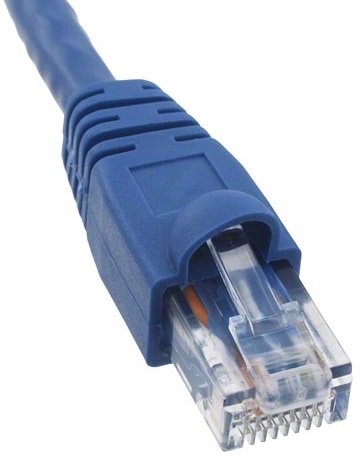
At first sight there is not much to say about network cables, but we still want to give some small hints about what to look for:
- Network cables come in all sorts of lengths. We mostly don't buy cables shorter than 3 meter, because shorter cables are often unpractical. The longest ready-made cables we buy are 50 meter. If you need longer cables, you should buy cables on reels. Note that the maximal usable length for a UTP cable is 100m.
- UTP connectors (RJ 45) have a small plastic clip which clicks into the port when you plug the cable. These clips are very vulnerable and break off easily when you handle the cable. When the clip is broken, the cable will not be properly fixated and the network connection will be unstable. To avoid this, it is better to buy cables that have protection of the clip (see picture).
- When buying longer cables, you want to make sure that they are nog too sturdy, because this will make it hard to roll them up. If you want to keep your sanity while handling long cables you might find following instruction video useful: How to Coil Cables | The Over Under Technique. It has saved us already countless hours of messing around with cables.
- When you store many cables in a box (UTP or other) it is better to bind them, so they don't get mixed. Many people use adhesive tape to bind their cable, however we prefer to use reusable velcro ties strips.
Wi-Fi Access Points
If you want to use wireless devices (such as tablets for the judges), you will need to add Wi-Fi to your setup.
As mentioned briefly before, we prefer not to use a router with built-in Wi-Fi. There are a couple of reasons for that:
- Most routers with built-in Wi-Fi are made for small networks and will probably not be powerful enough to support the number of users you will have in a competition.
- For larger setups, i.e. large competition venues or competitions with many users, you will want to use multiple access points to cover the space and provide enough capacity.
- For optimal coverage, you want to put the Wi-Fi antenna's up in the air, the router on the other hand is best located closer to the floor.
For these reasons, we advise to use a router without built-in Wi-Fi (or with the Wi-Fi switched off) and extend your network with one or more Access Points. An access point (AP) is a device that is connected to your network through a UTP cable and has antenna's to distribute the network traffic over Wi-Fi.
Below we will discuss some aspects to take into account when you are selecting access points for your events.
Radio Bands
Modern Wi-Fi uses up to three bands: 2.4G, 5G and 6G, 6G being the most recent addition, so you will still find some offerings which do not support this band.
In order to support multiple bands, the AP needs multiple radio's, at least 1 for each band.
Some AP's will require you create separate network names for each band. This is to avoid. The better devices will create one network and negotiate the band with the devices that are connected in order to get the best coverage.
In general, you will want to work with AP's that have at least the 2.4G and 5G bands available.
The 2.4G band is very robust and provides larger ranges, but the band is also very crowded, so it can be difficult find a good channel to operate without interference.
The 5G band on the other hand has generally smaller ranges (but modern devices will give you a decent working range in open spaces). The advantage compared to 2.4G, is that 5G has more channels to work with and is typically less crowded.
Automatic Channel Selection
Each Wi-Fi Band has a number of channels that are available for the AP to chose from. Picking the wrong channel can be detrimental to the quality of the connections, because of interference with other networks.
The best option is to have access points with automatic channel selection. These will scan the frequency bands and pick the channel with the least traffic.
AP Co-operation
If you plan to use multiple AP's in one venue, you want to make sure that some form of co-ordination exists between the AP's, such that they offer the same network (SSID) and devices can roam from one AP to another.
This coordination comes in different forms. E.g. some brand will have the AP's coordinate automatically if they are present in the same network. Other brands work with an AP controller, which can be a separate device, or be integrated in the router.
Number of users supported
In the specifications of the access points, you will often find indications of the number of users supported by the device. Although this will give you some indication, it is wise to take this information with a grain of salt.
Real world testing reports will give you better information. Some technical aspects of the devices are also a good indication to take into account. E.g. the MIMO specification will tell you how many concurrent signals the AP can send and receive.
Spacial Considerations
Newer professional AP's will be able to serve a big area, e.g. 30 to 40 meter in away from the AP. As long as the number of users is small, this will work fine.
When the space gets crowded, with many users on the AP, or other network interfering in the space, the usable range of the AP's will decrease. Therefor, you need to consider adding more AP's if you need to serve a lot of users in a larger space.
Examples of access points
Ubiquiti UniFi Access Points
Ubiquiti has a range of access points available under the UniFi brand. There are different models, with different maximal speeds and MIMO configurations.
To configure the UniFy access points you will need to install the UniFy controller software package on a computer or work with a cloud key device that has this software built-in. After initial setup, the controller software is not needed in the network for the access points to operate, unless you need to change the configuration.
All models of the UniFy line use the same firmware package and can be used together in the same network. With the controller software you can assign the AP's to the same network (SSID). You can even create multiple SSID's, all running from the same AP's. You could use this feature to have more control over who can connect to your network, e.g. you can add a temporary SSID for one event to give a group access during the event and remove the SSID for the next event.
The UniFy access points are powered through the network connection (PoE). To use them you will need a PoE enabled switch, or use a PoE injector. The PoE injector is included with some packages, check carefully when ordering to see if you need to order them separately.
We have been using the UniFy AP-AC PRO for events with up to 40 users without reaching the limits of its capacities. According to specs, one access point can handle 200 users, but we expect this to be mostly theoretical. Current models support newer Wi-Fi standards.
Ruckus Access Points
Ruckus has a long tradition of providing Wi-Fi devices for large user groups. Compared to similar priced devices from other brands, the specs might not look too impressive, however we have found no issues using their R510 model with a large number of users (i.e. up to 70 users). In general this brand is trusted to run very stable with large numbers of users.
Ruckus has a wide variety of AP's, be sure to select a model that works stand alone (without external controller). The R510 model that we have been using, has a built-in configuration web page, which you can access from your computer to set up the SSID and security settings.
The access points have cooperation built in. The first AP in the network automatically becomes the master. All other AP's connected afterwards, will mirror the setup of the master AP, thus creating a unified network.
The AP's are also designed to be powered with PoE, however they also have a DC 9V connector (adapter not included with the package).